Month: September 2021

study, laptop, books-4522028.jpg

Semester Examination Notice September - 2021

Notice No : SICE/SE/002

Date : 17/09/2021

It is hereby informed to all the students who have applied for Semester Examination September 2021, that the Semester Examination will be held as per below schedule.  

Examination Time Table
SL NO.PAPER CODEEXAM DATE
01 S1P1 27/09/2021
02 S1P2 28/09/2021
03 S1P3 29/09/2021
04 S1P4 30/09/2021
05 S1PR1 03/10/2021

The Admit Card for Semester Examination can be downloaded 20/09/2021. The Examination Time as per the allotment on the Admit Card 

question mark, important, sign-1872665.jpg

OPERATOR

OPERATORS

Generally an operator is a symbol that operates shortens values of variables of same data types and produced a result. An operator operates on variables and perform and action in a program. There are three types of operators as below.

  • Unary Operator
  • Binary Operator
          1. Arithmetic Operators
          2. Relational Operators
          3. Logical Operators
          4. Assignment Operators
          5. Pointers Operators
          6. Special Operators
          7. Bitwise Operators
    • Ternary Operator


Unary Operator

 The operators which have only one operand are called Unary Operator. The Unary Operators are:

  • ± : Sign operator
  • ++ : Increment operator
  • – – : Decrement operator
  • & : Address of operator
  • * : Value of address
  • ~ : Complement operator

Increment and decrement operators are unary operators that add or subtract one from their operand, respectively. The increment operator and decrement operators manifest in to two forms as Postfix and Prefix.

  • Post increment and Post decrement:
    1. C++ : Assign the value and increase the value by 1.
    2. C– : Assign the value and decrease the value by 1.

[Here C is deem as a variable]

Example:   If a=5, b=a++ then b=5 and a=6 , If a=5, b=a– then b=5 and a=4

  • Pre increment and Post decrement:
    1. ++C : Increase the value and then assign that value.
    2. – –C : Decrease the value and then assign that value.

[Here C is deem as a variable]

Example:   If a=5, b=++a then b=6 and a=6, If a=5, b=–a then b=4 and a=4

Binary Operator

In mathematics, a binary operation is a calculation involving two operands, so operator which have two operands are called Binary operator. All arithmetical, relational, assignment, logical and bitwise operators are Binary.

Table 1: List of Binary Operators

Sl. No.

Category

Operator

Operation/ Meaning

1

Mathematical

+

Addition

2

Mathematical

Subtraction

3

Mathematical

*

Multiplication

4

Mathematical

/

Division

5

Mathematical

%

Reminder

6

Relational

Greater than

7

Relational

Less than

8

Relational

>=

Greater than equal to

9

Relational

<=

Less than equal to

10

Relational

==

Equal to

11

Relational

!=

Not equal to

12

Bitwise

&

Bitwise And

13

Bitwise

|

Bitwise OR

14

Bitwise

^

Bitwise exclusive OR

15

Bitwise

<< 

Left shift

16

Bitwise

>> 

Right shift

17

Bitwise

~

Bitwise complement

18

Assignment

+=

Addition with assignment

19

Assignment

-=

Subtraction with assignment

20

Assignment

*=

Multiplication with assignment

21

Assignment

/=

Division with assignment

22

Assignment

%=

Reminder with assignment

23

Logical

&&

Logical And

24

Logical

||

Logical OR

25

Logical

!!

Logical NOT

Ternary Operator

The operator which have three operands are called Ternary operator. The ternary operator “?:” earns its name because it’s the only operator to take three operands. It is a conditional operator that provides a shorter syntax for the if..then..else statement. The three parts of it’s are Expression, True part and False Part.

Syntax                       : Condition ? Expression1 : Expression2

Example                    : x>y ? g=x : g=y;

Or                                : g=x>y ? x : y;


DATA TYPES IN C

The kind of data that the variable may hold in a programming language is referred to as data types. C provides two types of data:

  1. Primary or Primitive Data type
  2. Secondary or Derived Data type


Primary Data type:

TYPE

SIZE (Bits)

Range

Char or Signed Char

8

-128 to 127 

Unsigned Char 

8

0 to 255

Int or Signed int

16

-32768 to 32767 

Unsigned int

16

0 to 65535 

Short int or Signed short int

8

-128 to 127 

Unsigned short int

8

0 to 255 

Long int or signed long int

32

-2147483648 to 2147483647 

Unsigned long int

32

0 to 4294967295 

Float

32

3.4 e-38 to 3.4 e+38

Double

64

1.7e-308 to 1.7e+308 

Long Double

80

3.4 e-4932 to 3.4 e+4932 


Secondary Data type:

  • Array
  • Structure
  • Pointer
  • Enum
  • Union, etc.

WHAT IS OPERATOR IN C LANGUAGE

OPERATOR OPERATORS Generally an operator is a symbol that operates shortens values of variables of same data types and produced a result. An operator operates on variables and perform and action in a program. There are three types of operators as below. Unary Operator Binary Operator Arithmetic Operators Relational Operators Logical Operators Assignment Operators Pointers …

WHAT IS OPERATOR IN C LANGUAGE Read More »

question mark, important, sign-1872665.jpg

CONSTANT

 In a program, a name May be assigned to a data item. If it remains the same, throughout the program execution, then we say that the value of name is a constant. Thus, constant (literals) is a value, written into a program instruction that does not change during the execution of a program. There are three types of constants as below:

  • String constant
  • Numeric constant
  • Character constant

String Constant

A string constant or literal is a sequence of alphanumeric characters enclosed in  double quotation marks the maximum length of a string constant is limited to 255 characters. Each string constant is automatically added with a terminating character ‘\0’.Thus the string “abc” will actually be represented as “abc\0” in the memory and its size is 4 characters.


Numeric Constant

Numeric constant has a constant value in number. The value of the constant can be positive or negative. There are 4 types of numeric constants as follows.


  1. Integer Constant: – Integer constants are whole numbers. An integer constant may be either a short integer or long integer.
  2. Floating Point Constant: – A floating point constant has a real value. It may be written in two forms called the fraction form such as 0.3 and the other as exponent form such as 3.7e12.
  3. Octal Constant: – Octal numbers are the integer numbers with a base 8. The digits allowed in this system are 0 to 7.
  4. Hex Constant: – Hex decimal numbers are integer numbers to the base 16. The digits allowed in this system are 0 to 9 and letters A to F.


Character Constant

Character constant is either a single alphabet or a single digit or a single special symbol enclosed within a pair of single quotation mark, such as ‘A’, ‘a’, ‘.’, ‘?’.


IDENTIFIERS

IDENTIFIERS

Identifiers are refers to the names of variables, functions and arrays. Identifiers are also the names of objects, which can take different values but only one value at a time. Once a value is assigned to an identifier, it cannot be changed during the execution of the program.

WHAT IS OPERATOR IN C LANGUAGE

OPERATOR OPERATORS Generally an operator is a symbol that operates shortens values of variables of same data types and produced a result. An operator operates on variables and perform and action in a program. There are three types of operators as below. Unary Operator Binary Operator Arithmetic Operators Relational Operators Logical Operators Assignment Operators Pointers …

WHAT IS OPERATOR IN C LANGUAGE Read More »

question mark, important, sign-1872665.jpg

VARIABLES

A quantity or value which may vary during processing of C programming procedure is called variable. Variable is a name that C language compiler associates with a storage location in the main memory of the computer. Variable holds data that can be modified during program execution. After you declare a variable in a program, you can assign it a value. A variable is an identifier that is used to represent some specified type of information within a designated portion of a program.

Rules for Naming a Variable

  1. A variable name is any combination of 1to 10 alphabets. Digits or special symbol (underscore). Some compiler allows variable names whose length could be up to 40 characters. Still it could be safer to strict to the rule of 8 characters.
  2. The first character of the variable must be an alphabet. Don’t use the underscore as the 1st character of variable name.
  3. No comma, blank space or special symbols are allowed.
  4. Keywords are not allowed.
  5. Uppercase and lowercase letters are distinct.

WHAT IS OPERATOR IN C LANGUAGE

OPERATOR OPERATORS Generally an operator is a symbol that operates shortens values of variables of same data types and produced a result. An operator operates on variables and perform and action in a program. There are three types of operators as below. Unary Operator Binary Operator Arithmetic Operators Relational Operators Logical Operators Assignment Operators Pointers …

WHAT IS OPERATOR IN C LANGUAGE Read More »

question mark, important, sign-1872665.jpg

KEYWORDS IN C LANGUAGE

Keywords are the basic building blocks for programming statement. These are the words whose meaning has already been explained to the C compiler. Keywords also known as reserve words whose meaning cannot change. All keywords written in lower case and cannot be used as a variable names. There are 32 keywords available in C as listed below:

1.       auto

2.       break

3.       case

4.       char

5.       const

6.       continue

7.       default

8.       do

9.       double

10.   else

11.   enum

12.   extern

13.   float

14.   for

15.   goto

16.   if

17.   int

18.   long

19.   register

20.   return

21.   short

22.   signed

23.   sizeof

24.   static

25.   struct

26.   switch

27.   typedef

28.   union

29.   unsigned

30.   void

31.   volatile

32.   while

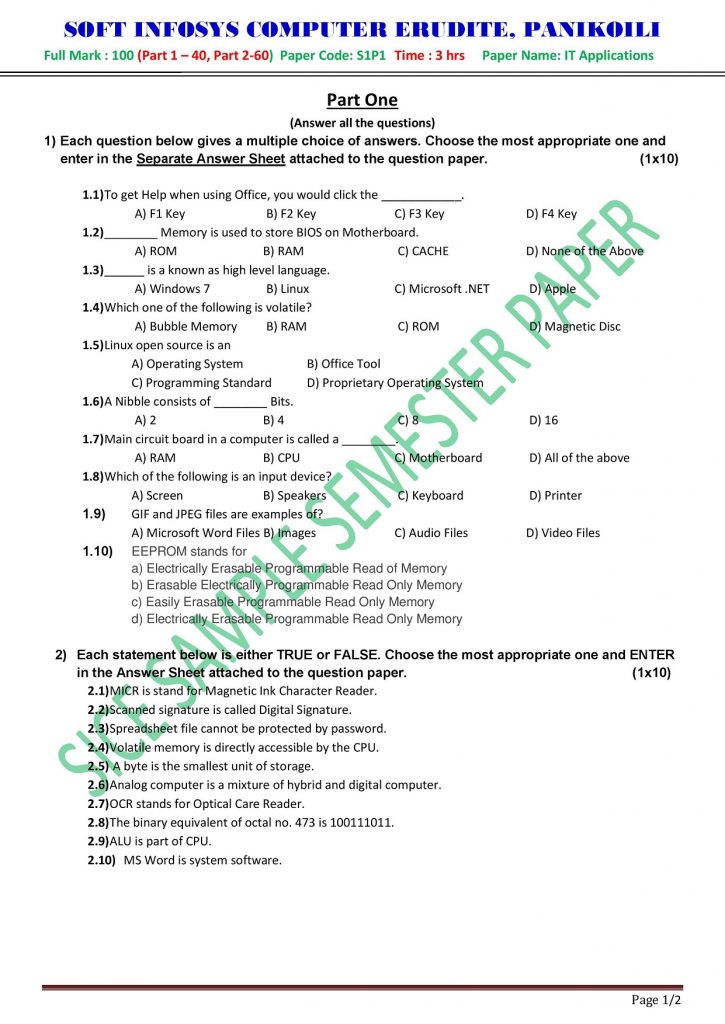
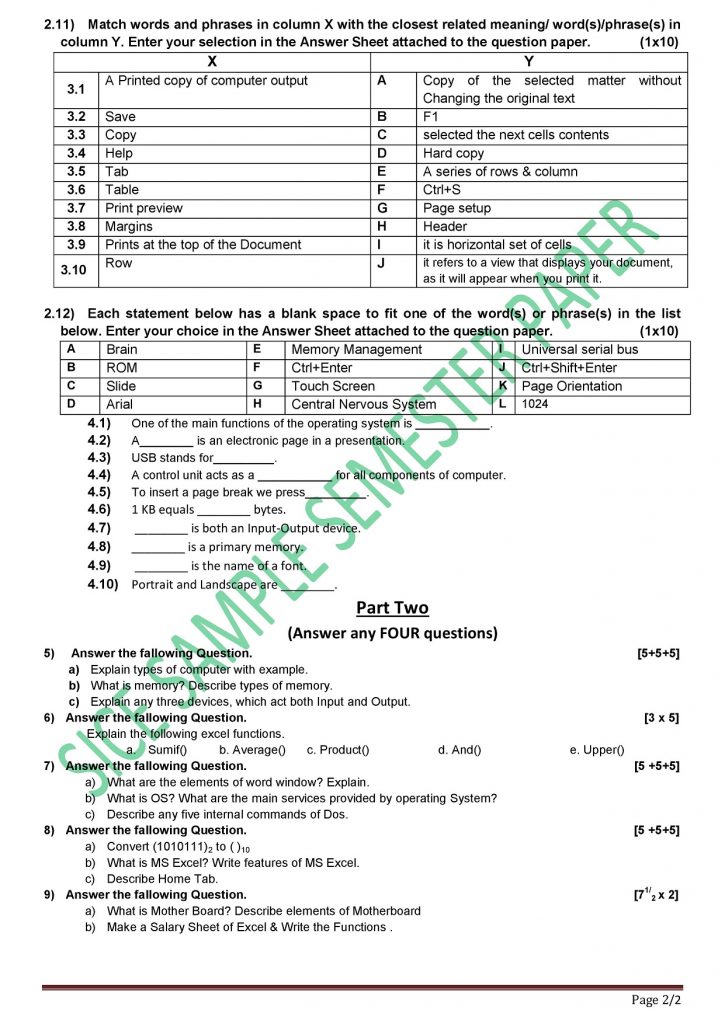
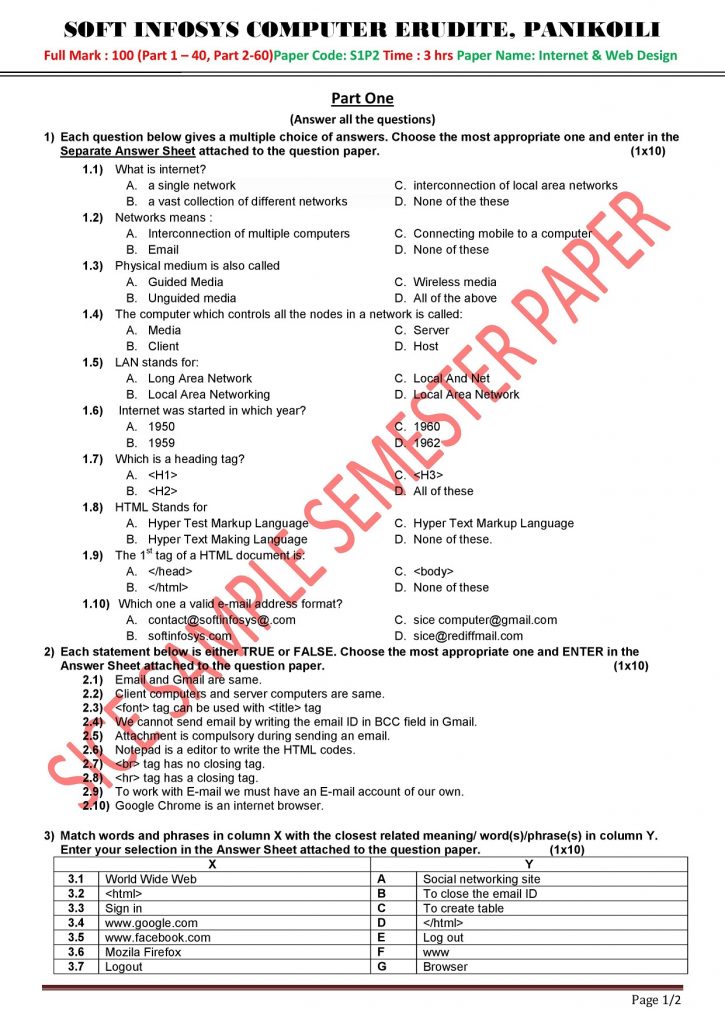
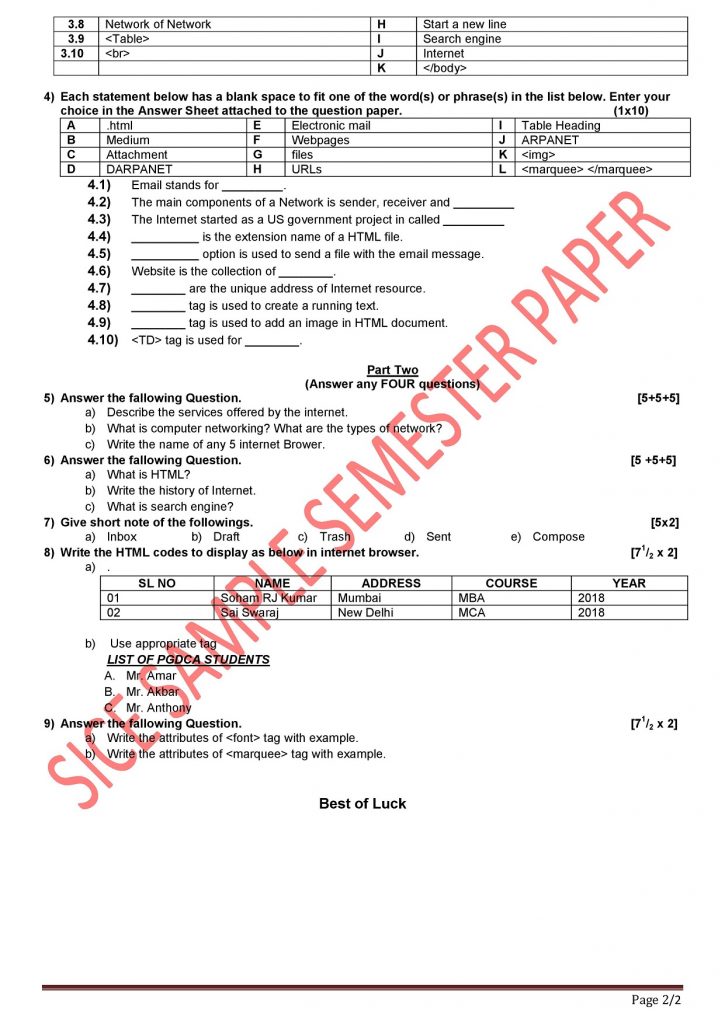
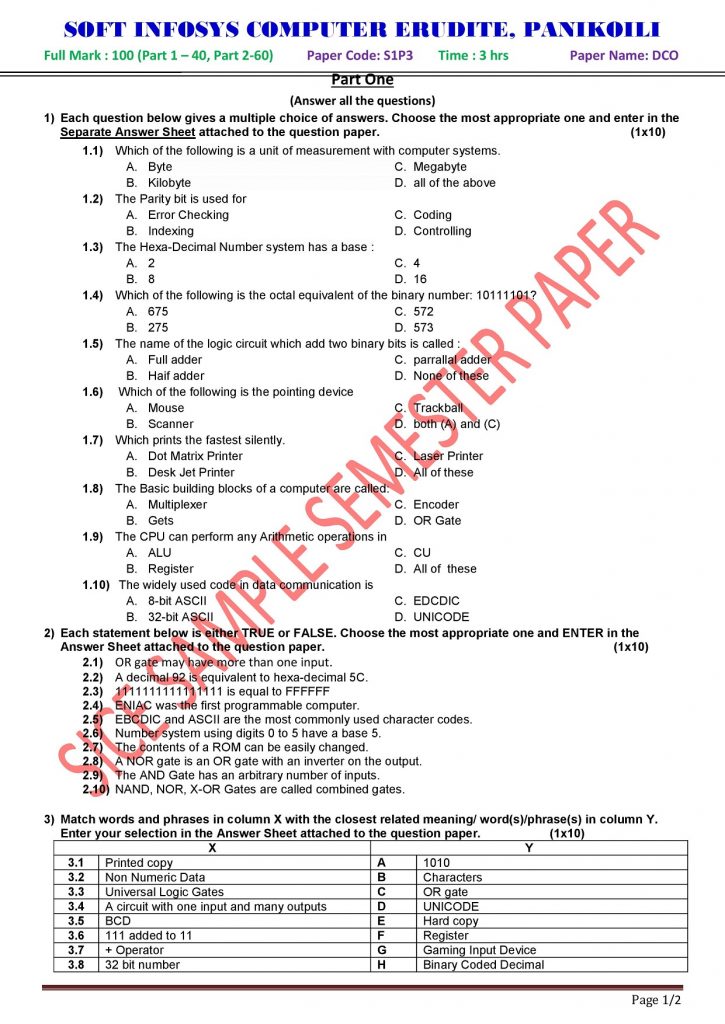
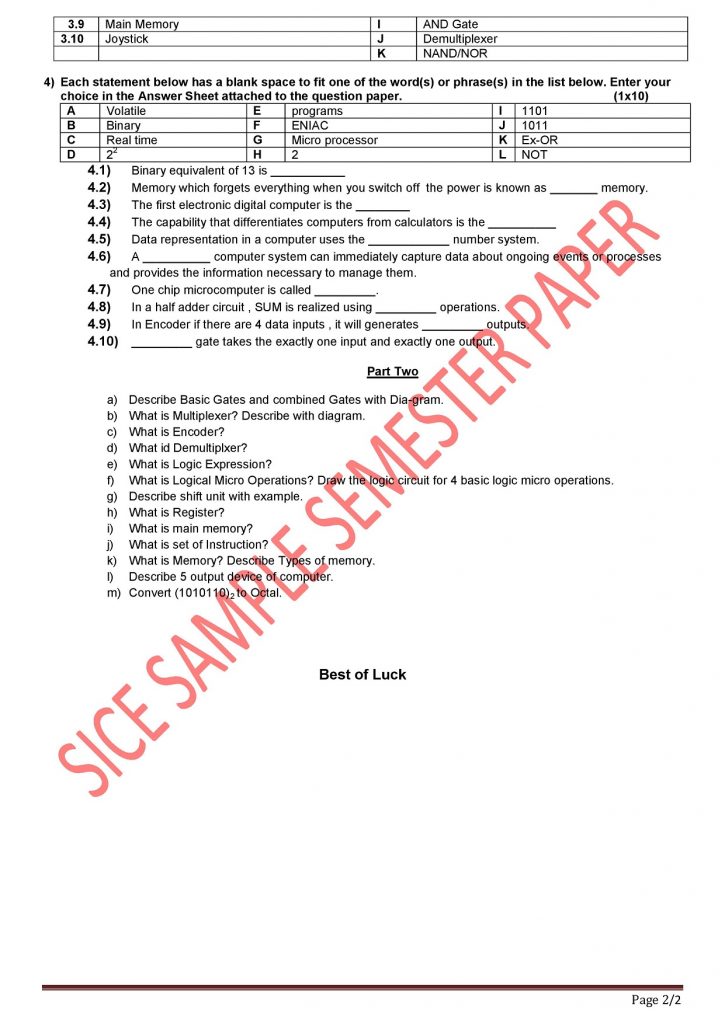
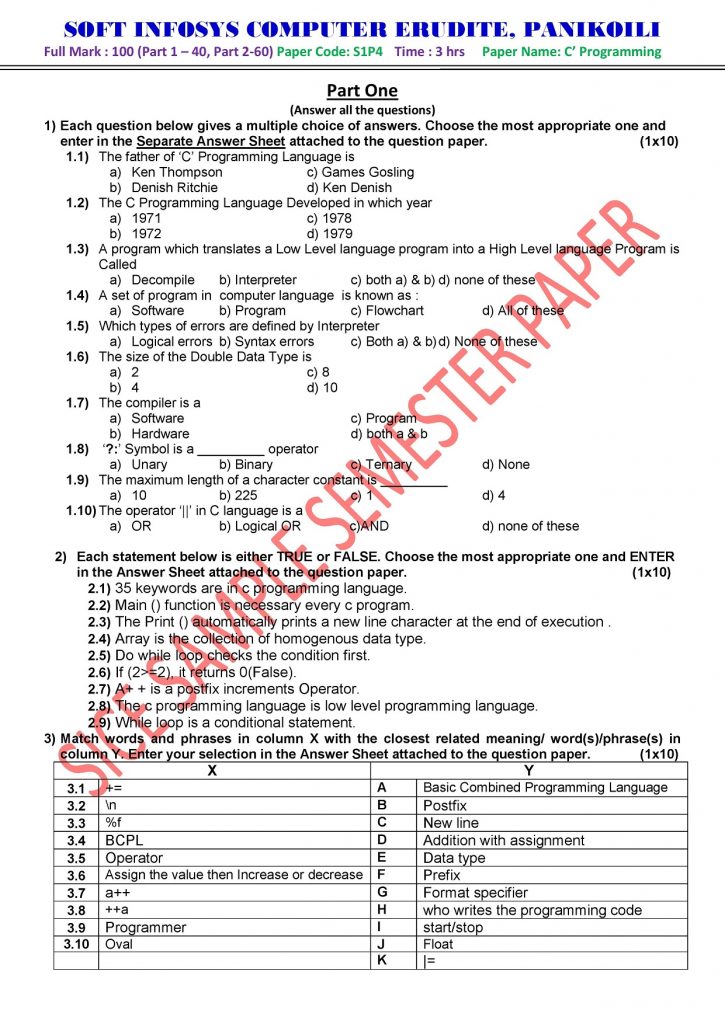
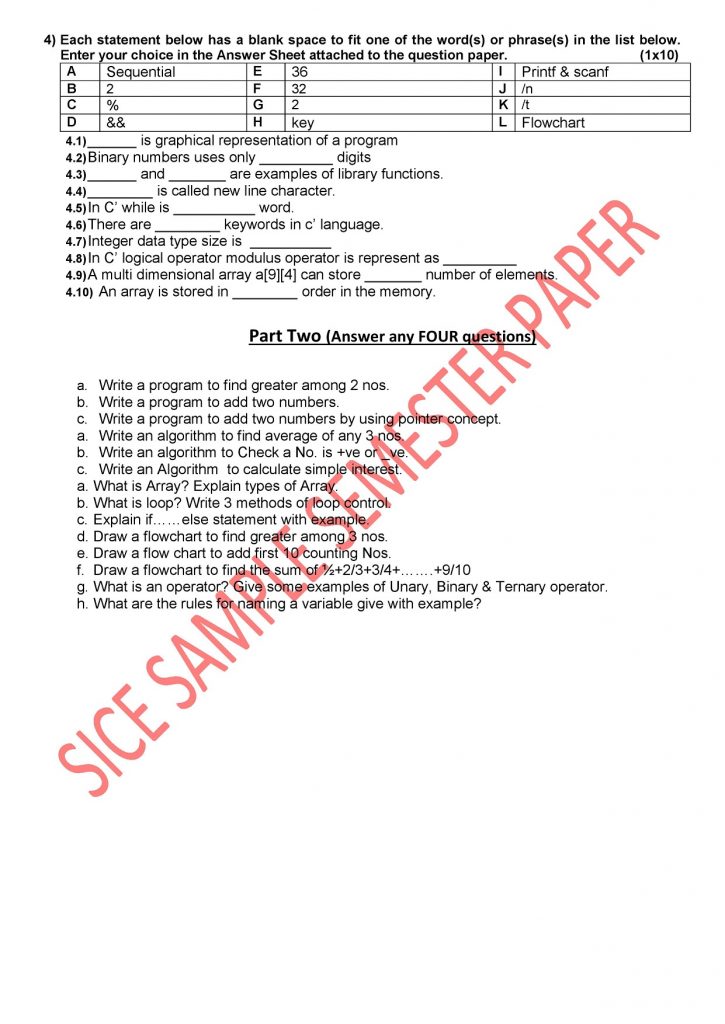
1st Semester Sample Question

Ganesh Puja Notice - 2021

ganesha

Ganesh Puja Meeting

              It is hereby inform to all the present student and pass-out students that , the  Ganesh Puja Meeting is arranged on  Dt. – 05/09/2021 at 10:00 AM. It is requested to all the students to join on the meeting and present there ideas for making a grand celebration. 

Thank you

Arranged By : SICE Students

Managed By : SICE

------

Microsoft Office Word

MS Word Shortcut Keys

SL NO

Shortcut

Description


1.        

Ctrl+A

Select all contents of the page.

2.        

Ctrl+B

Bold highlighted selection.

3.        

Ctrl+C

Copy selected text.

4.        

Ctrl+D

Open the font preferences window.

5.        

Ctrl+E

Aligns the line or selected text to the center of the screen.

6.        

Ctrl+F

Open find box.


Ctrl+I

Italic highlighted selection.


Ctrl+J

Aligns the selected text or line to justify the screen.


Ctrl+K

Insert a hyperlink.


Ctrl+L

Aligns the line or selected text to the left of the screen.


Ctrl+M

Indent the paragraph.


Ctrl+N

Opens new, blank document window.


Ctrl+O

Opens the dialog box or page for selecting a file to open.


Ctrl+P

Open the print window.


Ctrl+R

Aligns the line or selected text to the right of the screen.


Ctrl+S

Save the open document. Like Shift+F12.


Alt+F, A

Save the document under a different file name.


Alt+X

Show the Unicode code of a highlighted character.


Ctrl+T

Create a hanging indent.


Ctrl+U

Underline the selected text.


Ctrl+V

Paste.


Ctrl+W

Close the currently open document.


Ctrl+X

Cut selected text.


Ctrl+Y

Redo the last action performed.


Ctrl+Z

Undo last action.


Ctrl+Shift+A

Sets the selected text to all capital letters.


Ctrl+Shift+D

Adds double underline to the selected text.


Ctrl+Shift+E

Enable or disable revision tracking.


Ctrl+Shift+F

Opens Font window to change the font.


Ctrl+Shift+L

Quickly create a bullet point.


Ctrl+Shift+>

Increase selected font +1pts up to 12pt and then increase font +2pts.


Ctrl+]

Increase selected font +1pts.


Ctrl+Shift+<

Decrease selected font -1pts if 12pt or lower; if above 12, decreases font by +2pt.


Ctrl+[

Decrease selected font -1pts.


Ctrl+/+C

Insert a cent sign (¢).


Ctrl+’+<char>

Insert a character with an accent (acute) mark, where <char> is the character you want. For example, if you wanted an accented é you would use Ctrl+’+e as your shortcut key. To reverse the accent mark, use the opposite accent mark, often found on the tilde key.


Ctrl+Shift+*

View or hide non printing characters.


Ctrl+Left arrow

Moves one word to the left.


Ctrl+Right arrow

Moves one word to the right.


Ctrl+Up arrow

Moves to the beginning of the line or paragraph.


Ctrl+Down arrow

Moves to the end of the paragraph.


Ctrl+Del

Deletes word to right of cursor.


Ctrl+Backspace

Deletes word to left of cursor.


Ctrl+End

Moves the cursor to the end of the document.


Ctrl+Home

Moves the cursor to the beginning of the document.


Ctrl+Spacebar

Reset highlighted text to the default font.


Ctrl+1

Single-space lines.


Ctrl+2

Double-space lines.


Ctrl+5

1.5-line spacing.


Ctrl+=

Set selected text as subscript.


Ctrl+Shift+=

Set selected text as superscript.


Ctrl+Alt+T

Insert trademark (TM) symbol.


Ctrl+Alt+1

heading 1.


Ctrl+Alt+2

heading 2.


Ctrl+Alt+3

Changes text to heading 3.


Ctrl+Alt+F2

Open new document.


Ctrl+F1

Open the Task Pane.


Ctrl+F2

Display the print preview.


Ctrl+Shift+>

Increases the font size of selected text by one point.


Ctrl+Shift+<

Decreases the font size of selected text by one point.


Ctrl+Shift+F6

Switches to another open Microsoft Word document.


Ctrl+Shift+F12

Prints the document.


F1

Open help.


F4

Repeat the last action performed (Word 2000+).


F5

Open the FindReplace, and Go To window in Microsoft Word.


F7

Spellcheck and grammar check selected text or document.


F12

Save As.


Shift+F3

Change the text in Microsoft Word from uppercase to lowercase or a capital letter at the beginning of every word.


Shift+F7

Runs a Thesaurus check on the selected word.


Shift+F12

Save the open document. Like Ctrl+S.


Shift+Enter

Create a soft break instead of a new paragraph.


Shift+Insert

Paste.


Shift+Alt+D

Insert the current date.


Shift+Alt+T

Insert the current time.

Mailings Tab

How to Use Mail Merge in Microsoft Word

Mail Merge is most often used to print or email form letters to multiple recipients. Using Mail Merge, you can easily customize form letters for individual recipients. Mail merge is also used to create envelopes or labels in bulk.

This feature works the same in all modern versions of Microsoft Word: 2010, 2013, and 2016.

In a blank Microsoft Word document, click on the Mailings tab, and in the Start Mail Merge group, click Start Mail Merge.


Click Step-by-Step Mail Merge Wizard.


Select your document type. In this demo we will select Letters. Click Next: Starting document.


Select the starting document. In this demo we will use the current (blank) document.


Select Use the current document and then click Next: Select recipients.

Note that selecting Start from existing document (which we are not doing in this demo) changes the view and gives you the option to choose your document. After you choose it, the Mail Merge Wizard reverts to Use the current document.


Select recipients. In this demo we will create a new list, so select Type a new list and then click Create.


Create a list by adding data in the New Address List dialog box and clicking OK.

Save the list.


Note that now that a list has been created, the Mail Merge Wizard reverts to Use an existing list and you have the option to edit the recipient list.


Selecting Edit recipient list opens up the Mail Merge Recipients dialog box, where you can edit the list and select or unselect records. Click OK to accept the list as is.


Click Next: Write your letter.


Write the letter and add custom fields.


Click Address block to add the recipients’ addresses at the top of the document.


In the Insert Address Block dialog box, check or uncheck boxes and select options on the left until the address appears the way you want it to.


Note that you can use Match Fields to correct any problems. Clicking Match Fields opens up the Match Fields dialog box, in which you can associate the fields from your list with the fields required by the wizard.


Press Enter on your keyboard and click Greeting line… to enter a greeting.


In the Insert Greeting Line dialog box, choose the greeting line format by clicking the drop-down arrows and selecting the options of your choice, and then click OK.


Note that the address block and greeting line are surrounded by chevrons (« »). Write a short letter and click Next: Preview your letters.


  1. Preview your letter and click Next: Complete the merge.
  2. Click Printto print your letters or Edit individual letters to further personalize some or all of the letters.